General

I want to reset my password

You can reset your password yourself. Please follow these steps on the website: Custodian

  1. On the Custodian homepage, under the login section, click on ‘Forgot password?’
  2. Enter your email address in the ‘Username’ field and click ‘Send’
    1. Information: If an account exists with that email address, you will receive a password reset link shortly.
  3. You will have received an email titled ‘Forgot password?’ in your email
  4. Click on the link
  5. Enter your new password in the window that opens
  6. Click ‘Send’
    1. Your password will be reset, and this pop-up will appear: Information: Your password has been changed successfully
How do I register a new user?

Register a new user: You must create a ticket in the Solarig Ticket System, selecting the Help Topic O&M / O&M Systems Dept. – Users & Access. In the form, a filled template must be uploaded. You can find the template here.

Password: You can reset it yourself; we are attaching a link to the video about the reset process: WEB-L1 – Block 02 – Password Reset *

Access link to Custodian: https://custodian.solarig.com

For further training on how to use the platform, please visit the following website: Custodian Web – Custodian Solarig

* Please note that the direct link is the english version. Please visit our training page to see different languages.

I need to register a project for a user

The users have been activated and granted visibility to the mentioned projects. 

We remind you that in order to access a project after making changes to the user(s), it is necessary to log out and log back into the Custodian platform. This way, the user(s) will be refreshed and updated, allowing them to view the newly added projects. 

The plant XXXX does not appear in Custodian

The mentioned project(s) have been activated.
We remind you that in order to stop accessing a project after making changes to the required user(s), it is necessary to log out and log back into the Custodian platform. This way, the user(s) will be reset and updated, allowing you to view the newly incorporated projects.

I want to delete a WO

It is mandatory to first leave a comment, indicating the reason and cancel it. Once canceled, at the top a trash bin icon will appear (on the web) . By clicking on it and confirming, the Work Order will be deleted. To do this, you must be an advanced user of the project, so if you are not, please contact the Service Manager or an advanced user of the plant.

Projects and contracts module is not loading

Please try logging out and logging back in with your user account.

If the issue persists and you’re connected to the internet via an Ethernet cable, disconnect the cable and try logging in again using Wi-Fi.

If the problem continues, we will review your case internally in Custodian to resolve it as quickly as possible.

How can I make a suggestion to improve a chatbot response?

Create a “Support” type ticket and include a screenshot of the question and the chatbot’s response. Suggestions for possible answers the chatbot should give are also welcome.

I need to be an advanced user of a project

To become an advanced user of a project, you need to contact the Service Manager of that project.
To modify this status, the Service Manager must access the “Projects & Contracts” module, under the “Personnel” section and then “Advanced Users”.

Web

Error: "User has no access to this project: XXX"

If you have access to a project, but you are not allowed to access any WO, it is possible that access was granted but you haven’t logged in again. Log out and log back in to Custodian to load all data from the new project.

I’ve been granted access to a new module or menu, but I can't see or access it

Just like with projects, if you have recently been granted access to any module, you need to log out and log back into the platform to be able to access it.

I want to add resources to the inventory, but they don’t appear

To be able to add resources to the inventory, first make sure the resource is created in the Custodian platform. If it is, in order for it to appear in the materials movement module (where purchases, transfers, etc. are made), it must first be added to the project resources section in all the projects where you want to later add it to the WOs. 

The following video briefly explains the different sections LINK. *

You can also find more information about Custodian at the following link. *

* Please note that the direct link is the english version. Please visit our training page to see different languages.

I can't login and there's no error message
If you are unable to log in to the application and no error message appears on the screen (or you see an infinite loading), this usually means that your computer’s clock is not synchronized with the correct time.
Solution: Please create a ticket for your IT department and request them to synchronize your computer’s clock with the correct time.
The website has an infinite loop and I can't work on it

If you see an infinite loop in the Custodian website, you can clear all site cookies.

App

I can't see WO in APP

As a general rule, APP users will only be able to see the WOs assigned to themselves. To view WOs without an assigned person, you must contact the SM of your plant. They will need to add you, within the project module on the Web, as an assigned user (in the personnel section).  

You also won’t be able to see completed WOs or WOs whose planning starts in the future.
We are attaching a LINK* to a video where this is explained.

For further information about Custodian APP: Custodian App – Custodian Solarig

* Please note that the direct link is the english version. Please visit our training page to see different languages.

As soon as I log in, the app crashes and I can't access it

If the app suddenly closes as soon as you open it, go to your mobile device settings, and within the Custodian app , click on “clear data” or “delete all data.” This will remove all existing data from the app , so you will need to log in again. Please note that by performing this action, any data pending synchronization on your device will not be synced and will be lost (only local data).  

I can't see projects in the app

The system checks the user against all projects they have access to. The app is designed for a technician to have fewer than 20 active projects. If more projects are assigned, the app may show errors when loading data and fail to display the desired plants. In that case, access should be removed from all unused projects.

No technicians appear when starting a work session

If technicians have access to the project, this is a synchronization error. To fix it, the user must force a global synchronization.
If the issue persists, log out of the app and log back in.
IMPORTANT! When creating a new session, you will lose any unsynchronized local data that hasn’t yet been uploaded to the web. Therefore, make sure there is no pending data before proceeding.

I can't select assets when creating a WO

Check that the project where you’re creating the WO includes that type of asset.
If it does, then it’s a synchronization error. To fix it, the user must force a global synchronization.
If the issue persists, log out of the app and log back in.
IMPORTANT! When creating a new session, you will lose any unsynchronized local data that hasn’t yet been uploaded to the web. Therefore, make sure there is no pending data before proceeding.

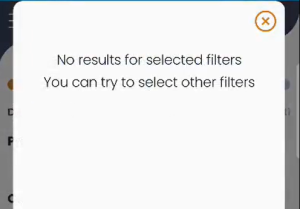
When selecting a field, I see the message “No results for selected filters. You can try to select other filters”

Message can be in english.

This is a synchronization error, and not all data has been retrieved correctly.
Find a location with a strong internet connection and follow these steps:

  1. Force a global synchronization in the app (this refreshes all data).
  2. Log out and log back into the app.

If it still doesn’t work after that, the issue may be due to cache. In that case:
  1. Clear the app data from your phone’s settings and log in again.
    Note: This first login may take a few extra minutes.

  2. As a last resort, reinstall the app.
    However, if the previous steps are done with a good internet connection, it should work.

I can't see the CMMS Menu

The app is designed for a technician to have fewer than 20 active projects. If there are more projects, the app will show errors when loading information and won’t display the desired plants. Therefore, it’s necessary to remove access to all projects that are not currently being used.